This is Part 4 of the “Use Claude Smarter” series. Today you will learn how to use Claude Projects. Missed Part 3? Read our list of 10 Claude prompt mistakes.
Every time you open a new chat, you explain the same things again: who you are, what your work is, and how you like your answers. It is boring, and it wastes time. If you want to know how to use Claude Projects, this guide gives you a simple setup that takes about 10 minutes. It also keeps your messages short, which helps your credits too.
What Are Claude Projects?
Think of a project as a folder that remembers you rules. The Claude Help Center describes projects as self-contained workspaces with their own chat history and knowledge. You can upload files, add background, and set instructions for that project.
At the time of writing, the Help Center says projects are available on free accounts too, with up to five projects. If you do not see Projects in your sidebar, your plan or app version may be different.

What Is Claude Memory?
Memory is different . Claude can remember useful facts from your chats, like your job or how you like answers. You can view and edit what Claude remembers in settings — Memory.
Here is the easy difference:
| Project | Memory | |
| What it holds | Instructions and files for one job | General facts about you |
| Best for | Blog writing, job search, client work | Your tone, your role, your habits |
| You control it by | Project instructions and uploaded files | Setting __ Memory, or telling Claude |
How to Use Claude Projects:
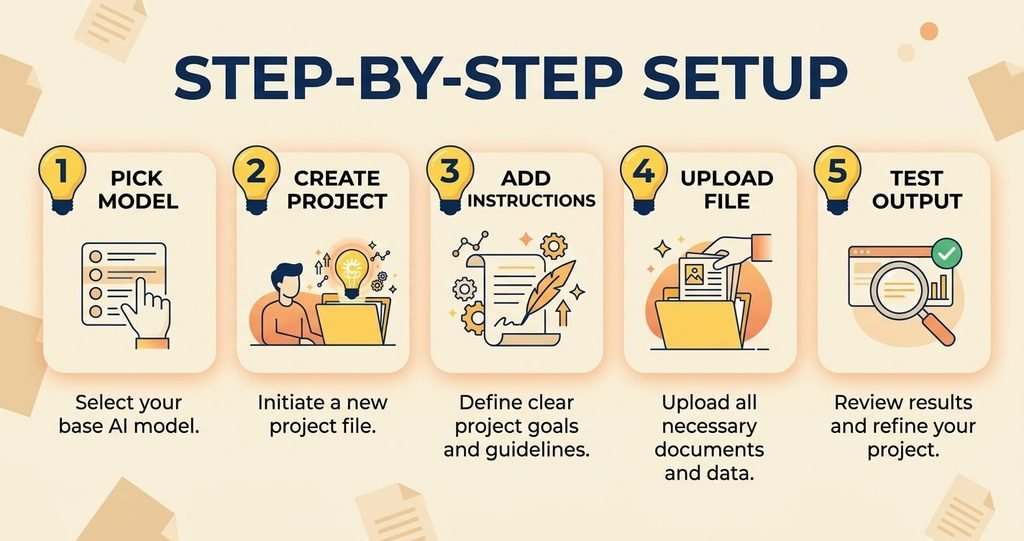
Step-by-Step Setup
Step 1: Pick one job.
Choose a task you repeat often, like “Blog Writing”. Start with one to three projects only.
Step 2: Create the project.
Open Projects in the sidebar, click New Project, and give it a clear name, like “Blog Writing”.
Step 3: Add project instructions.
Copy this template and fill in the blanks:
“I am [your role]. I write for [your audience]. Always use simple English. keep answers under [length] unless I ask for more. Use bullet points for lists. If something is missing, make a smart guess and tell me what you assumed.”
Good instructions follow the same rules as a good prompt. If you need help, read how to write prompts for Claude.
Step 4: Add one “About My Work” file.
Write a short note: who you are, your audience, your style, and two examples of work you like. Upload it to the project’s knowledge.
Step 5: Test it.
Open a new chat inside the project and ask: “Who am I, and how should you answer me?” If the reply sounds right, you are done.
From now on, you open the project and type only your task. No long introduction needed.
6 Easy Hacks That Make It Work Better
- One project per job. A “Blog” project and a “Job Search” project keep thinks clean.
- Keep files small and current. Old files can push Claude in the wrong direction. Big files can also use more of your limit.
- Name chats clearly. “Article 4 draft” is easier to find than “New chat”.
- Tell Claude to remember. Type: “Remember that I like short answers in simple English. “You can update memory right from a chat.
- Use a private chat for one-off questions. Outside a project, the ghost icon opens an incognito chat. Claude does not save it to memory or chat history.
- Check your memory every few weeks. Open setting — Memory and delete anything that is wrong or old.
Which One Should You Use?
- Same task again and again? Use a project.
- Want Claude to know you in general? Use memory.
- Private or one-time question? Use an incognito chat.
Most people use all three, and that is fine.
What’s Next
Now you know how to use Claude projects and Memory with a simple setup. In the next article, we will answer a big question:
do you really need a paid plan, or is the free one enough? We will compare Free vs Paid Claude in simple words.