This is Part 3 of the “Automate your Life with Claude AI” series. Missed the earlier parts? Read how to automate LinkedIn and Email with Claude.
If you use ClickUp to manage your tasks, and you want to know how to automate ClickUp with Claude AI, you’re in the right place. Writing task descriptions, updating statuses, checking what’s pending, replying to comments __ it adds up fast. The good news is that Claude AI can do most of this work for you, either by writing it for you to paste in, or by working directly inside ClickUp itself.
In this guide, we’ll show you both ways __ one that takes one minute to start, and one that lets Claude actually create and update tasks for you.
Why Automate ClickUp?
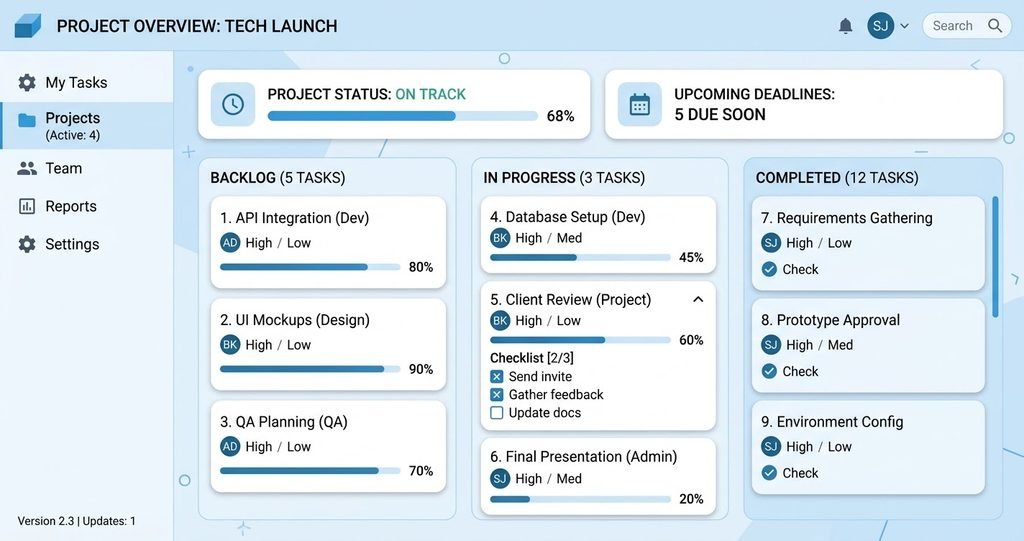
Most people spend hours every week just organizing their work, not doing it. Here’s what automation actually gives you back:
- Time: Writing a clear task description tasks 5-10 minutes. Claude does it in seconds.
- Clarity: Claude writes clean, well-structured tasks __ no messy, half-finished notes that confuse your team.
- Less mental load: You don’t have to remember every small task. Tell Claude what happened, and it organizes it for you.
- Faster team updates: Managers can turn a messy meeting into clear, assigned tasks in minutes, not hours.
- Great for freelancers and agencies: If you manage many clients projects, Claude can quickly summarize what’s done, what’s late, and what’s next __ across all of them.
This isn’t just “nice to have.” For anyone managing more than a few tasks a week, this saves real, measurable time.
Method 1: The Easy Way (Copy-Paste)
This method works for everyone, right now, with no setup. You just talk to Claude, and copy what it gives you into ClickUp.
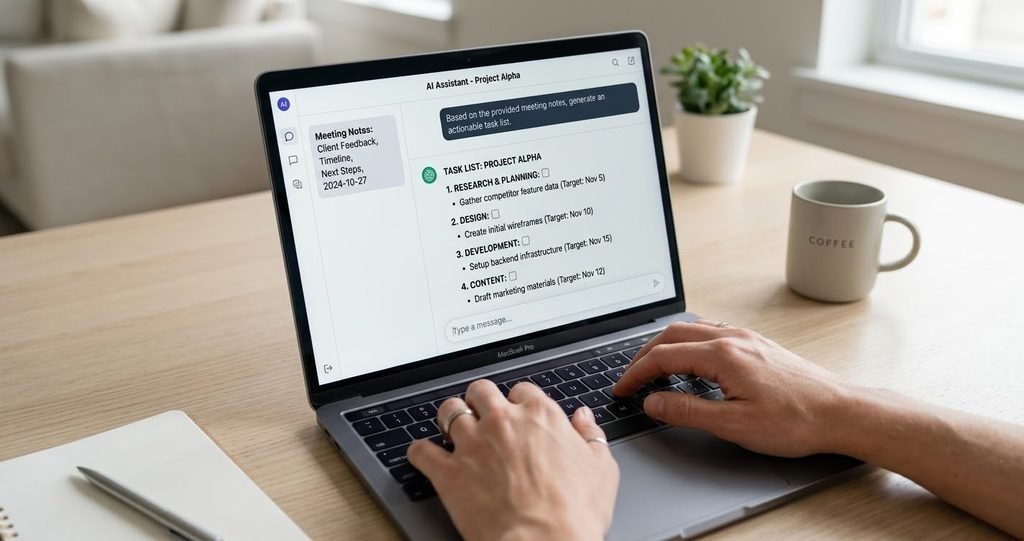
1. Write Clear Task Descriptions
“I need to create a ClickUp task for [describe what needs to be done]. Write a clear task title and description.”
Claude gives you a clean, ready-to-paste task __ no more vague one-line tasks that confuse your team later.
2. Turn Meeting Notes into Tasks
After a meeting, paste your rough notes:
“Here are my meeting notes: [paste notes]. Turn this into a list of clear tasks, with who should do each one.”
This alone can save hours every week for team leads.
3. Build a Project Plan
“I’m starting a new project: [describe it]. Break it down into a list of tasks and steps I can add to ClickUp.
4. Write Status Updates
“Here’s what I finished this week: [list it]. Write a short status update I can post as a comment.”
What you get: Clear tasks and updates, written in seconds. You just copy, check, and paste into ClickUp.
How to Automate ClickUp with Claude AI (Advanced Method)
This is where it gets powerful. Claude can actually connect directly to your ClickUp account. Once connected, you don’t need to copy-paste anymore __ you just tell Claude what you want, and it does it inside ClickUp for you.
What Claude can actually do once connected:
- Create tasks directly in your ClickUp workspace
- Search for existing tasks, so you don’t have to dig through ClickUp manually
- Update tasks __ change status, details, or due dates.
- Add comments to tasks, so you can update your team without opening ClickUp
- View your workspace structure __ so it understands your projects, lists, and folders before making changes
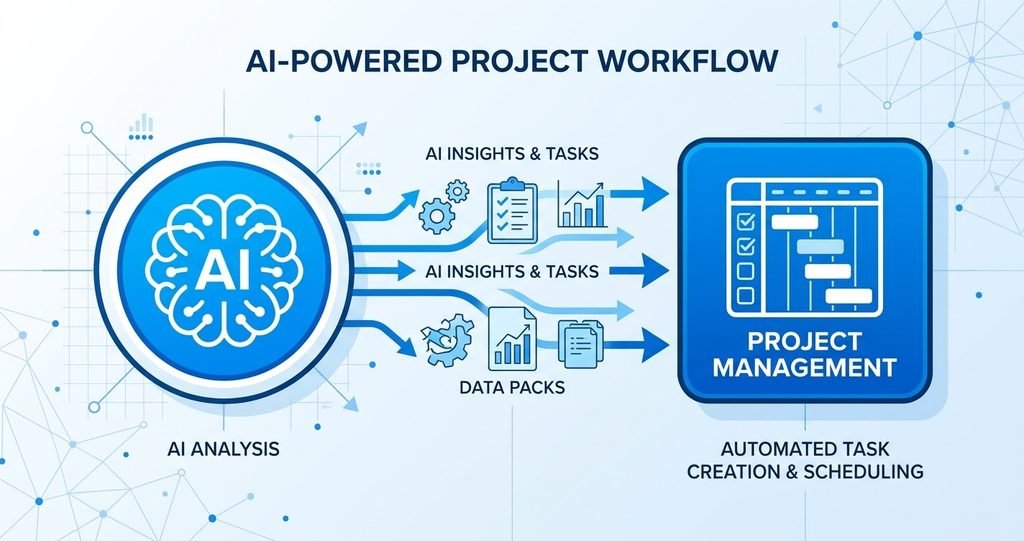
How it works, in simple steps:
- You connect your ClickUp account to Claude (one-time setup, just like logging in)
- You tell Claude what you want __ for example: “Create a task called ‘Design homepage mockup, ‘due next Friday, in my Website Project.”
- Claude creates it directly in ClickUp __ no copy-pasting needed
- You can also ask things like “What tasks are overdue in my Marketing project?” and Claude will check and tell you
This method is good for:
- People who manage many tasks and projects daily
- Team leads who want to update ClickUp without constantly switching tabs
- Freelancers and agencies juggling multiple client boards
What it needs:
- A one-time ClickUp account connection
- A little trust-building at first __ always double-check important changes until you’re confident in the setup
Which Method Should You Choose?
| Easy Way | Advanced Way | |
| Setup Time | 0 micutes | 2-3 minutes (one-time) |
| What it does | Writes tasks/updates for you to paste | Creates and updates tasks directly |
| Cost | Free | Free (uses your existing ClickUp account) |
| Best for | Anyone, especially beginners | People managing many tasks or teams |
What’s Next
Now you know how to automate ClickUp with Claude AI __ from writing quick tasks to letting Claude manage your workspace directly. In the next article, we’ll show you how to automate your job search on Indeed with Claude AI __ so finding and applying to the right jobs takes minutes not hours.